ROB RUN Best Settings, Performance Fixes, and Troubleshooting Guide
PC system requirements, graphics, controls, audio, voice chat, and Streamer Mode settings, plus documented error codes and crash workarounds for ROB RUN.
ROB RUN launches with a detailed set of client options spanning graphics, controls, audio, voice chat, performance overlays, and Streamer Mode privacy tools. This guide covers the live PC menu options alongside Kefir’s troubleshooting checklists for mouse-movement FPS drops, red-screen HDR issues, startup failures, voice chat faults, and error codes.
System Requirements and Hardware Warnings
All ROB RUN configurations need 64-bit Windows 10 (or a newer release), DirectX 11, an online connection, and 20 GB of available disk storage. The ROB RUN Help Center lists separate minimum and recommended PC tiers across processor, memory, and graphics hardware.
| Component | Minimum requirement | Recommended requirement |
|---|---|---|
| Operating system | 64-bit Windows 10 or newer | 64-bit Windows 10 or newer |
| Processor | Intel i5-6600K or Ryzen 5 1600 | Intel i5-9600K or Ryzen 5 3600 |
| Memory (RAM) | 12 GB | 16 GB |
| Graphics card | GTX 1050 Ti, RX 580, or Arc A380 | RTX 2070, RX 5700 XT, or Arc B570 |
| API and storage | DirectX 11, 20 GB free space, internet connection | DirectX 11, 20 GB free space, internet connection |
The client checks GPU capabilities at startup and displays a hardware warning if your graphics card lacks DirectX 11 support or at least 3.5 GB of VRAM. If the game fails to detect a graphics driver at all, it instructs you to install the latest driver from your GPU manufacturer and restart the client.
In-Game Graphics Settings and Performance Tuning
The Graphics menu splits into General display controls and Advanced visual quality controls, with overall presets covering Minimum, Low, Medium, High, Ultra, and Custom. After editing visual options, the client asks whether to apply unsaved changes, and some adjustments require returning to the main menu before taking effect.
Display and Core Graphics Options
The General section of the Graphics tab holds seven active display and quality-preset controls, defaulting to the High preset with VSync enabled and Frame Rate locked out while VSync stays on.
| Setting | Available options | Function in client |
|---|---|---|
| Screen Resolution | Monitor resolutions | Sets the output display resolution |
| Fullscreen | Full-screen or windowed | Switches between full-screen and windowed display |
| Frame Rate | 30, 60, 120, 144, 240, or Unlimited | Caps maximum rendered FPS |
| VSync | On or Off toggle | Enables or disables vertical synchronization; disables the Frame Rate cap selector while On |
| Render Resolution | Scale slider | Adjusts internal rendering resolution scale |
| Anti-aliasing | Disabled, SMAA, MSAA x4, MSAA x4 SMAA, or TAA | Selects the edge-smoothing mode (defaults to MSAA x4 SMAA on High) |
| Graphics Quality | Minimum, Low, Medium, High, Ultra, or Custom | Applies an overall visual quality tier |
Advanced Visual Quality Settings
The Advanced section contains 18 active controls covering post-processing, lighting, shadows, textures, level of detail, draw distance, foliage, water, and UI blur. Six post-processing toggles—HDR, Motion Blur, Depth of Field, HBAO, Environment Reflections, and Eye Adaptation—stay inactive when Post-processing is Off, and Additional Light Shadows turns inactive when Shadows is set to Disabled.
| Setting | Options or toggle | What it controls |
|---|---|---|
| Texture Quality | Low, Medium, or High | Sets global texture detail level |
| Object Visibility Distance | Low, Medium, High, Maximum, or Render All | Controls object draw distance |
| Level of Detail and LOD Crossfade | Detail slider and toggle | Controls environment detail level and smooth LOD transitions |
| Shadows | Disabled, Minimum Quality, Medium Quality, High Quality, or Maximum Quality | Sets main shadow rendering quality |
| Additional Light and Additional Light Shadows | Individual toggles | Enables extra light sources and shadows cast by those lights |
| HBAO | Toggle | Adds ambient occlusion shadows |
| HDR | Toggle | Broadens brightness and color range; turn off if the screen turns red |
| Post-processing | Toggle | Turns overall post-processing effects on or off |
| Eye Adaptation, Depth of Field, and Motion Blur | Individual toggles | Controls camera exposure adaptation, depth blur, and motion blur |
| Environment Reflections and Interface Window Blur | Individual toggles | Enables environmental reflections and blurred UI panels |
| Grass and Grass Draw Distance | Grass: Minimum Quality, Medium Quality, High Quality, or Maximum Quality (no Disabled option on PC); Grass Draw Distance: Low, Medium, or High | Controls foliage density across four PC tiers and grass render distance across three discrete presets |
| Water | Minimum Quality, Low Quality, Medium Quality, High Quality, or Maximum Quality | Sets water visual quality |
Across the built-in presets, Minimum disables Post-processing and Shadows while dropping Render Resolution to 0.4, Low keeps Motion Blur, HBAO, and Interface Window Blur off at 1.0 Render Resolution, and Ultra raises Shadows to Maximum Quality and Level of Detail to 2.0 above the default High preset. For combat positioning, range falloff, and survival priorities once your frame rate is stable, check our solo survival guide.
Built-In Performance Metrics Overlay
You do not need an external overlay to track frame rate or connection stability while tuning graphics. Inside the Other settings tab, Display performance metrics supports Default and Custom layouts covering five live telemetry readouts:
- Frame Rate (FPS) shows your real-time frame rate on screen.
- Network Latency (PING) displays live ping in milliseconds.
- Packet Loss (LOSS) reports dropped packet percentage.
- Network Statistics and Network Graph display live network statistics and metrics when Display performance metrics is switched to Custom (both stay off in Default mode).
Controls, Audio, Voice Chat, and Streamer Mode
On PC, the Settings dialog organizes options into five top-level tabs—Graphics, Sound, Controls, Social, and Other—with Voice Chat placed as a section inside Sound and Streamer Mode placed inside Social. You can also reset every category back to factory values at any time using the default settings confirmation prompt.
Controls and Key Bindings
The Controls tab offers separate General Sensitivity and ADS Sensitivity sliders so hip-fire turning speed and aiming precision can be adjusted independently. On November 17, 2026, Kefir added Invert Mouse Y-Axis, which pitches the camera downward when you push the mouse upward and vice versa.
- Movement and combat behavior toggles include Hold to Aim, Hold to Crouch, and Hold to Sprint, alongside Center-of-screen Marker While in Vehicle and Close Info Windows Upon Map Camera Movement.
- Helicopter Controls let pilots switch between Basic and Alternative control layouts.
- Key Bindings allows rebinding movement, Battle, Vehicle: Car, Vehicle: Helicopter, Vehicle: Helicopter (Alternative), Other, and Interactions actions—including Voice Chat Key, Quick Click-Transfer Items, Quick Hover-Transfer Items, Quick Delete Items, and Split Items—while warning you if a key is already bound elsewhere.
- Interface toggles under the Other tab let you enable or disable Display Key Markers in HUD, Starting Tips, and Property Presentation.
Audio and Voice Chat Setup
In the Sound tab, Output Device (including Default Device), Master Volume, separate sliders for In-game Music, Radio, Players’ Voices, and Sound Effects, Sound Effect Visualization, and Play Audio When not in Focus control game audio; Voice Language sits in the Other tab alongside Language rather than under Sound.
- Voice Chat Mode provides four states: Disabled, Push To Talk, Toggle To Talk, and Always On.
- You get separate Input Device, Microphone Volume, and Voice Chat Volume controls for your microphone and incoming player voices.
- Three built-in microphone filters—Automatic Gain, Echo Cancellation, and Noise Suppression—adjust mic gain automatically, cut speaker or headphone echo, and filter ambient room noise.
Keep in mind that communication restrictions apply to fresh characters rather than acting as an audio bug. Party and clan text chats work for every player, whereas voice chat is blocked inside Lenny’s Motel and the prison unless you own a land plot or have accumulated Jail Time, a restriction introduced in the November 17, 2026 update. Public chat channels likewise require owning a settlement plot or holding sufficient Jail Time; see our base building and raiding guide for how land plots and settlements work.
Social Privacy and Streamer Mode
When Streamer Mode is active, it conceals your player ID, server details, and settlement information, restricts the world map view, and mutes the radio to cut down on stream sniping. In the Social tab, the Streamer Mode toggle is the only active control in that section, with no active screen-capture protection selector or streaming-software fields in the PC client. In the Social tab above the Streamer Mode section, privacy controls for Private Messages, Friend Requests, Party Invitations, and Clan Invitation switch between Everybody and Nobody alongside Ignored Players and the Profanity Filter toggle.
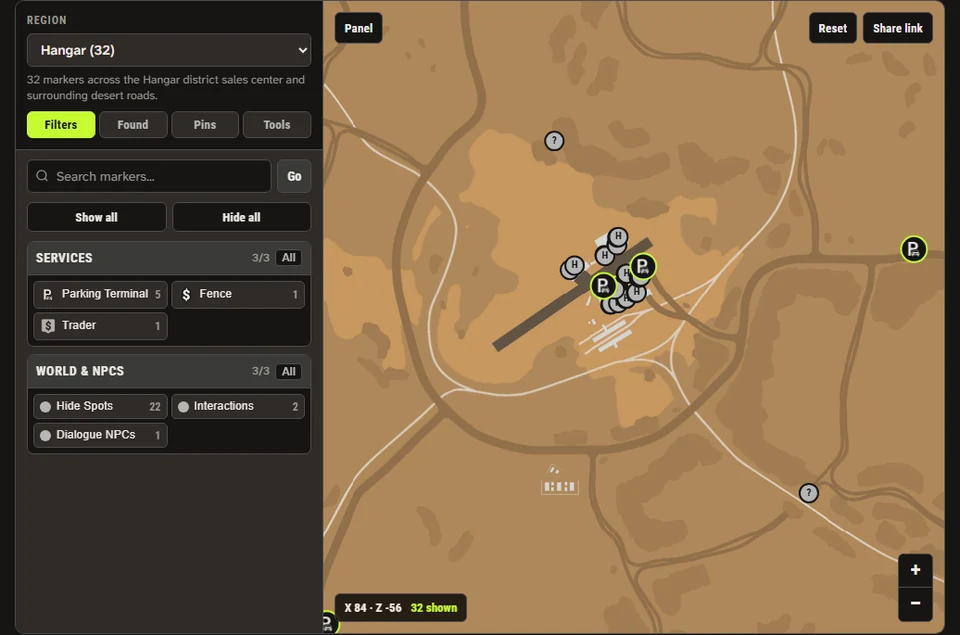
While your world map view is limited on stream, check location layouts on the interactive hangar map instead. Stream sniping—watching another player’s live stream for an unfair tactical edge—violates the ROB RUN Ban Policy and can trigger an account suspension.
Performance Fixes, Crashes, and Bug Workarounds
The ROB RUN Help Center publishes dedicated troubleshooting checklists for mouse-movement FPS drops, red-screen HDR glitches, startup errors, freezes, crashes, voice chat faults, and structured error codes. Work through the matching checklist below before submitting a support ticket.
Severe FPS Drops When Moving the Mouse
If frame rates stay smooth while standing still yet plunge to single digits whenever you move your mouse, an overly high mouse polling rate is the primary cause. Open your mouse utility software (such as Logitech, Razer, or Bloody), locate the polling rate option, and step it down.
If stuttering continues after lowering the polling rate, update your GPU drivers, apply the newest motherboard BIOS update—especially on 13th or 14th Gen Intel processors—and disable third-party overlays such as Discord or graphics-card overlay utilities.
Screen Turns Red (HDR Glitch)
If the entire screen shifts red in-game, Kefir support recommends three steps in order:
- Open the game settings, switch to the Graphics tab, and turn off HDR.
- Reinstall the game if turning off HDR alone does not clear the display issue.
- Download and install the newest graphics drivers from your GPU vendor’s support website, then contact support if the problem remains.
Error: Failed to load il2cpp
When the client fails to start with a “Failed to load il2cpp” error, Kefir’s troubleshooting guide lists five actions:
- In Steam, run the game file integrity check for ROB RUN.
- Reinstall the game cleanly.
- Temporarily turn off antivirus software that may be blocking runtime libraries.
- Make sure your Steam client is updated to the current release.
- Open the Windows Update menu and install any pending Windows security updates.
Game Won’t Load, Freezes, or Crashes
If the client fails to load or freezes repeatedly, test your internet connection, reboot Steam and ROB RUN, and install updated GPU drivers. In Steam, open Properties, navigate to Installed Files, and check game file integrity.
If the client crashes to desktop, close unused background programs and reboot your PC. Should crashes continue afterward, gather your PC specifications, a summary of what happened right before the crash, and the full error message text to send to support.
Voice Chat Not Working
When teammates cannot hear you or incoming voices cut out outside restricted hub zones, run through Kefir’s voice chat checklist:
- In your PC privacy settings, make sure ROB RUN has microphone access enabled.
- Open the in-game audio menu and check that the correct microphone is chosen under Input Device and that Voice Chat Mode is active rather than Disabled.
- Restart the client, test your internet connection stability, and close third-party programs that alter network routing.
- Add ROB RUN to both your antivirus and firewall exception lists.
- Launch the game through Steam and run Steam’s game file integrity check.
Outside technical faults, the in-game Limited Communication status flags the hub voice-chat restriction in Lenny’s Motel and Prison until you own a plot or meet the Jail Time threshold; for full descriptions of other zone and role statuses such as Safe Zone or Detained, see the codex reference.
Error Codes Reference
ROB RUN displays structured error codes ranging from network and file mismatches to Steam, Epic Online Services, and Easy Anti-Cheat failures. Match the exact code shown in your popup window to the documented cause and fix below.
| Error code | Category | Cause | Recommended fix |
|---|---|---|---|
| E-0101 / E-0110 | Network and data | Client cannot reach the server to fetch configuration or startup files | Check your internet connection and test whether regular websites load |
| E-0102 | Network and data | Downloaded files arrived damaged or blocked on public Wi-Fi, cafe, or hotel networks, or by security software | Move to a home network with no login page, turn off proxies, or temporarily disable HTTPS scanning in your antivirus |
| E-0124 | Network and data | Internal game asset loading error | Check game file integrity through Properties in Steam |
| E-0201 | Network and data | Active game server connection dropped and could not recover | Check your network stability and restart the client |
| E-0202 | Network and data | Authentication server is not answering | Check whether websites open and rule out ISP blocks; if it continues, copy the error text for support |
| E-0301 / E-0302 | Game version and files | Installed client version is outdated | Close the client, restart Steam, and download the latest update |
| E-0303 / E-0304 | Game version and files | Downloaded data is corrupted or mismatches the live build | Wait 10 to 15 minutes, turn off proxies, check game file integrity via Properties in Steam, and update |
| E-0401 | Account and authorization | Steam account authentication failed | Make sure Steam is online on the right account, then restart Steam and the game |
| E-0403 / E-0404 | Account and authorization | Epic Online Services authorization failed | Check file integrity via Steam, whitelist the game in your antivirus, and reboot your PC |
| E-0405 | Account and authorization | Steam stopped responding or antivirus blocked a game library | Inspect antivirus quarantine, open Steam, check game file integrity, and start from the Steam library |
| E-0406 | Account and authorization | Steam declined authentication | Take the Steam client out of Offline Mode on the right account, then close and reopen both Steam and ROB RUN |
| E-0407 | Account and authorization | Steam authentication failure | Restart Steam and ROB RUN, inspect your connection, and try another connection type; send the error text to support if unresolved |
| E-0408 | Account and authorization | Steam authentication request timed out | Check that Steam is running, inspect Steam service status, and restart both Steam and the game |
| E-0501 / E-0502 | Anti-Cheat | Easy Anti-Cheat is not running, damaged, or blocked by third-party software | Start the game only from Steam, pause antivirus, check file integrity via Properties in Steam, and reboot your PC |
| E-0503 | Anti-Cheat | Easy Anti-Cheat security violation triggered | Check game file integrity, relaunch, and test switching between Wi-Fi and wired Ethernet |
| E-0601 | Other | Physical keyboard and mouse were not detected (often caused by Remote Desktop or cloud streaming) | Plug a physical keyboard and mouse directly into the PC before launching and avoid remote sessions |
| E-0904 | Other | Unexpected internal client error | Restart the client; if it keeps occurring, copy the error window text and send it to support |
Server Regions, Cross-Server Parties, and Easy Anti-Cheat
Connection quality and party invites depend on which region and individual server your character currently occupies.
Active Server Regions and Daily Schedules
ROB RUN operates on developer-hosted servers across two active regions: EU and East US. At least one fresh server launches every day at 17:00 UTC in EU and 20:00 ET in East US, with extra servers opening automatically when player load rises.
- No custom community servers are supported at launch.
- Additional regional servers for Asia and Oceania are not planned before at least the end of 2026, and dedicated Russian servers are not planned.
- You can switch regions under Settings (Other), though region switching is only permitted while your character is inside Prison. Since the November 17, 2026 patch, your progress and Battle Pass points carry over when changing regions, though the client still warns that accumulated Battle Pass currency is lost when leaving a realm.
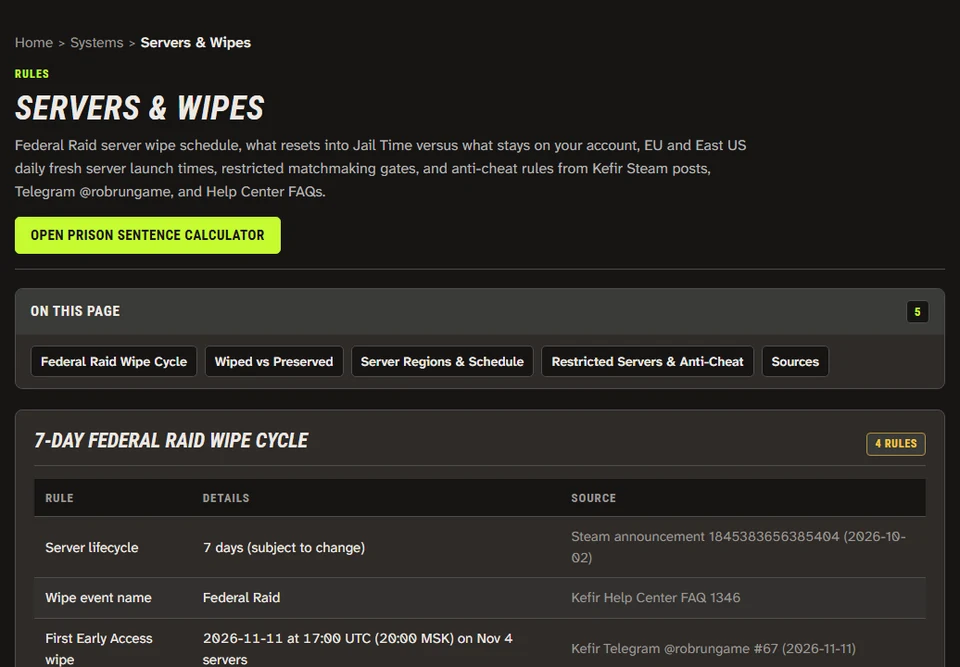
Every server follows a 7-day wipe cycle (subject to change) ending in a Federal Raid wipe. For the complete breakdown of what resets versus what carries over across wipes, review our servers and wipes system page.
Joining Friends on Another Server
Parties in ROB RUN hold up to three players, and all party members must wait on the global map to enter a location together. If an invite fails because your friend is playing on a different server, you must move to their server first:
- Open the Global Map, pick the Prison location, and select “Surrender to Feds”.
- Surrendering to the feds confiscates all belongings in the current server state and gives your character a prison sentence for the crimes committed.
- Once inside Prison, select your friend’s server from the list—online friends now appear in the server list with a “Show only servers with friends” toggle—and resend the party invite.
Inside the prison hub, the interactive Prison map marks the Prison Yard, Gym, Mailbox, Task Board, Execution Chamber, and Tattoo Artist.
Easy Anti-Cheat and Prohibited Modifications
ROB RUN relies on Easy Anti-Cheat alongside server-side validation, in-house cheat detection, and hardware ban testing started on November 27, 2026. On November 23, 2026, Kefir stated that it plans to roll out restricted-access servers using separate matchmaking (including inside Looty Bay), gated by either minimum Jail Time or total in-game purchases to curb ban evasion.
- Using cheats carries a permanent ban, while broader Ban Policy suspensions range from 24 hours to 5 years depending on severity.
- Every third-party client modification is forbidden—including visual, texture, crosshair, and camera edits—so stick strictly to in-game graphics options rather than external injectors or shader mods.
- If you run into an Easy Anti-Cheat error code or popup, capture a screenshot and attach it with your UID when contacting support.
For the full update changelog, anti-cheat enforcement timeline, and complete Ban Policy rules, read our news, patch notes, and anti-cheat guide.
Finding Your Player ID, Lost Progress, and Reporting Bugs
Kefir’s support FAQs request different details depending on the issue: lost-progress and Easy Anti-Cheat reports ask for your UID, crash tickets ask for PC specs, a crash summary, and the error text, and bug tickets ask for what you were doing beforehand plus a screenshot or video.
How to Copy Your Player ID
Press the Esc key in-game to open the side menu, where your UID appears on the right side directly beneath your character name. Clicking the “Copy UID” button saves the identifier straight to your clipboard for support tickets.
What to Check If Progress Disappears
Before assuming an account bug, check whether your server underwent a scheduled wipe and check that you are logged into the same Steam account you used previously. If items or progress vanished unexpectedly outside a wipe, contact support with your UID, character name, and the approximate time the loss occurred.
Submitting Bug Reports and Contacting Support
In Settings, the Support option opens the support portal where you can submit technical issues or questions. When reporting a bug, describe every action you took right before the issue triggered and attach a screenshot or short video clip.
If you ever open the client’s system build inspector window while troubleshooting, remember that ROB RUN warns never to share data copied from that system window with anyone outside project technical support.